Map edit mode
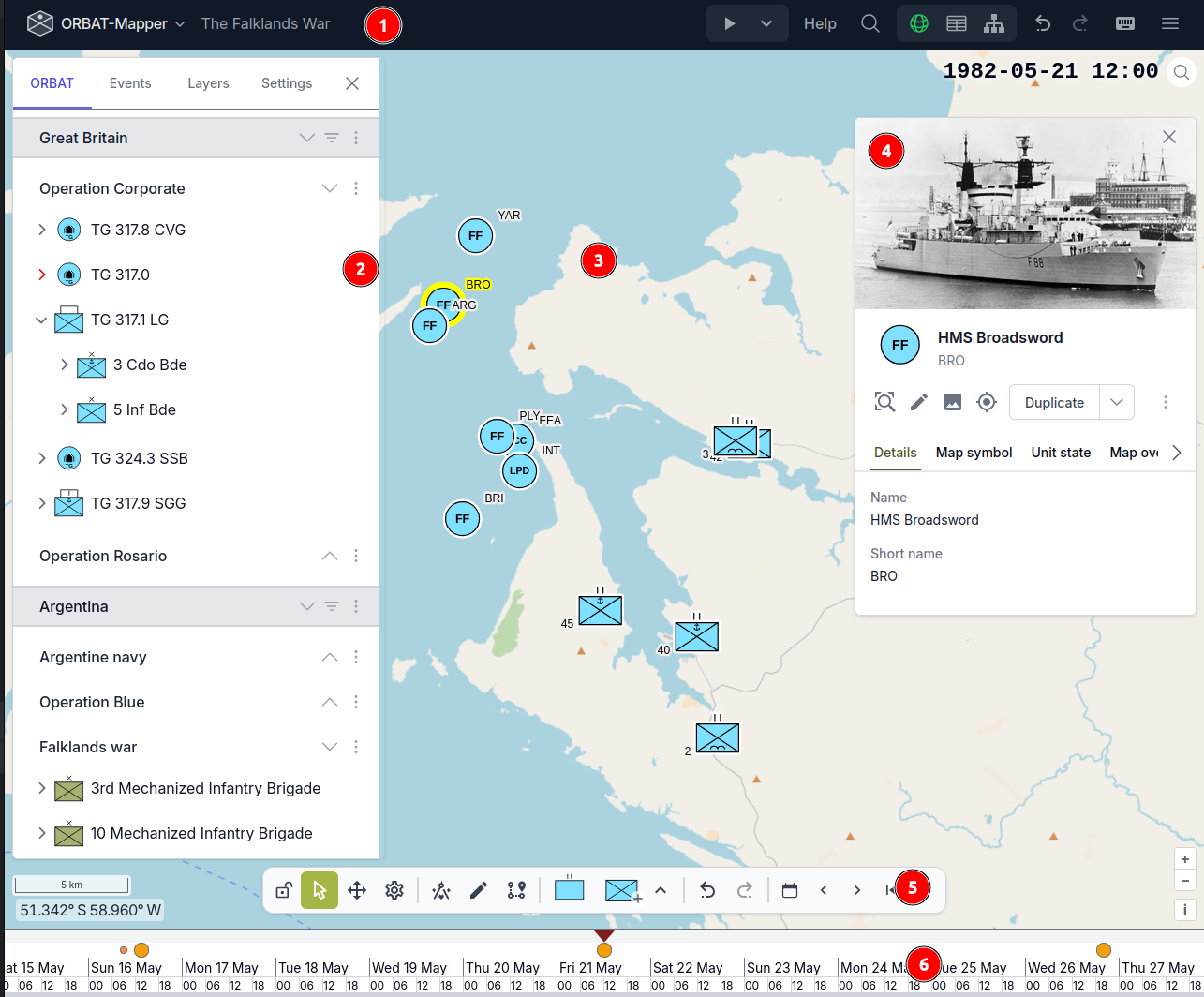
The map edit mode is the primary editing mode. It has these main parts:
- Navigation bar
- Main/ORBAT panel
- Map
- Details panel
- Map toolbar
- Timeline
Navigation bar

The navigation bar is at the top of the screen. It has these items:
- file menu
- scenario name
- playback menu
- help and search
- editing mode switch
- undo/redo buttons
- keyboard shortcuts
- settings menu (hamburger menu)
File menu
The file menu gives you almost all the scenario actions. These actions include save, load, import and export. The menu also gives you quick access to different settings and tools. 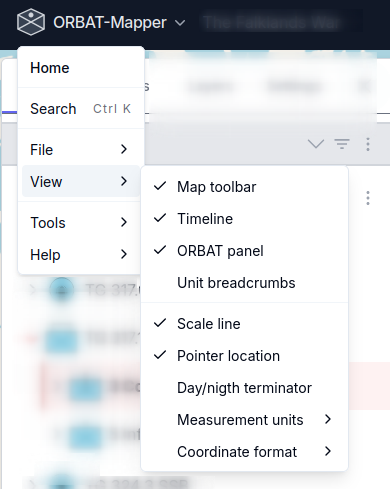
Main/ORBAT panel
The ORBAT panel is on the left side. It shows the hierarchy of the order of battle — sides, groups and units — as a tree that you can expand.
Browse and select
- To select a unit, click it. To select a range, hold Shift and click. To select or deselect one unit, hold Ctrl/Cmd and click.
- To move in the tree, use the arrow keys.
- To expand or collapse a unit, click the chevron icon. To open or close a full side, use the expand/collapse actions at the side level.
- To find units by name, use the filter field at the top. A location filter switch shows only the units near the current map view.
Drag and drop
- Drag units to put them in a different sequence or below a different parent.
- To make copies of the dragged units, hold Ctrl/Cmd and drag.
- To make copies of the units with their state (positions and timeline data), hold Ctrl/Cmd+Alt and drag.
- You can drag more than one selected unit at the same time.
Clipboard
- Ctrl/Cmd+C copies the selected units. Ctrl/Cmd+V puts them into the target unit.
Context menus
Right-click a side, a group or a unit, or use its dropdown menu. You then get actions such as edit, duplicate, move up/down, lock/unlock, hide/show and delete.
You cannot drag or change locked units and groups.
Map
The map is the central work area. It shows the units as military symbols, and you draw the map features on it.
Operate on units
- To select a unit, click its symbol. To add a unit to the selection, hold Shift and click. To select all the units in an area, drag a box on the map.
- To move a unit to a new position, drag it. Unit position recording must be on.
- Unit symbols have a rotation that you can set, and labels that show the names of the units.
Draw map features
Use the draw toolbar to make map features:
- These geometry types are available: Point, Line, Polygon and Circle.
- A freehand mode is available for lines and polygons.
- To change the vertices of a feature, go to edit mode. To move a full feature, go to translate mode.
Map layers
Use the layers panel to control the feature layers, the base map layers (XYZ tiles, TileJSON, KML) and the overlays. For each layer you can change the visibility, zoom to the layer, change its position in the sequence, and delete it. Range rings and day/night shading are available as optional overlays.
Details panel
When you select a unit or a map feature, the details panel shows on the right. It gives related data and editing controls.
Unit details
When you select a unit, the panel shows:
- Details — name, short name, description, external URL and initial location.
- Map symbol — SIDC code and the appearance options of the symbol.
- Unit state — timeline entries. They show position changes, status changes and other recorded state at each time.
- TO&E/S — table of organization, equipment and supplies.
- Properties — maximum speed and average speed with selectable units of measure.
The panel also gives these actions: zoom to unit, set location, duplicate, move in the hierarchy, show in the ORBAT tree, and delete.
Feature details
When you select a map feature, the panel shows:
- Style — the color and the width of the stroke, the fill, the arrows (for lines), the marker style (for points), and the text labels.
- Details — name, description and media.
- State — the state entries of the feature at different times.
Map toolbar
The map toolbar has the select, move and rotate modes for units. In rotate mode, drag on a unit (or on the selected units) to set the rotation of the symbol at the current scenario time.
Recording
The recording controls specify which changes go on the scenario timeline while you edit. The Rec button in the toolbar shows the current recording state.
Recording modes
There are three independent recording modes. You can set each mode to on or off:
- Unit position — records the changes of the unit locations on the map. Only this mode is on by default. Thus, the timeline immediately records the units that you move on the map. If this mode is off, you cannot drag units to new positions on the map.
- Unit hierarchy — records the changes of the organizational structure of the units. If this mode is on, the application makes an entry with a time on the timeline when you drag a unit to a new parent or when you change the sequence of the units in the ORBAT panel. It does not change the hierarchy directly.
- Feature geometry — records the changes of the shapes of the map features (points, lines, polygons). If this mode is on, the application makes a timeline entry when you draw or change the geometry of a feature. It does not change the feature directly.
All the recorded changes have the current scenario time. When you move along the timeline, the scenario shows the projected state at each time. This state comes from the recorded entries.
Use the Rec button
Click the Rec button to set the recording to on or off:
- When the recording is on, a red indicator and icons show which modes are on.
- When you click the button, all recording stops.
- When you click the button again, your previous recording configuration starts again. The application keeps your last selection.
Use the dropdown menu on the right side of the button to open the Recording Settings. There you can set each recording mode to on or off independently.
Timeline
The timeline is at the bottom of the map editor. It shows the time range of the scenario. An amber histogram shows the times that have many unit events.
Move in time
- To go to a time, click that position on the timeline.
- To move continuously through the scenario, drag to the left or to the right.
- To zoom in and out, use the scroll wheel.
- Event markers (amber circles) show the scenario events. To go to an event, click its marker.
The time controller above the timeline shows the current scenario time. It also has buttons that go to the previous day, the next day, the previous event and the next event.
Playback
Use the playback controls to animate the scenario in time:
- Play/Pause starts or stops the automatic movement of the time.
- Speed increases or decreases the speed. Each step makes the speed two times more or two times less.
- Looping plays the selected time range again and again.
- Range markers set the start and the end of the playback.
Context menu
Right-click the timeline to get more options:
- Zoom in / Zoom out
- Add a scenario event at the time that you clicked
- Hide the timeline