
Import data
ORBAT Mapper can import units and features from these sources and formats:
- ORBAT Mapper scenarios
- GeoJSON
- MilX
- Spatial Illusions ORBAT Builder
- Order of Battle Generator
- Decisive Action Training Environment (DATE) force structures
You can also import KML/KMZ files as temporary map layers. See Work with map background layers.
Start the import
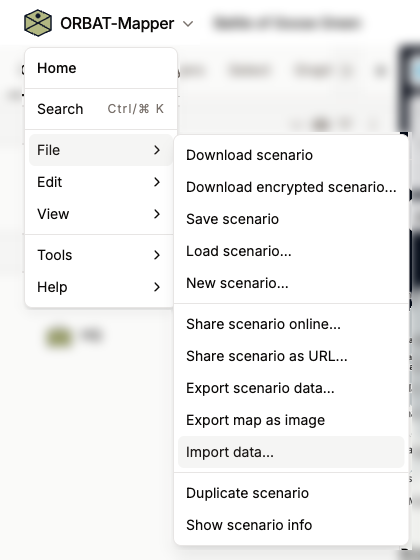
To start the import, select Import data from the File menu.
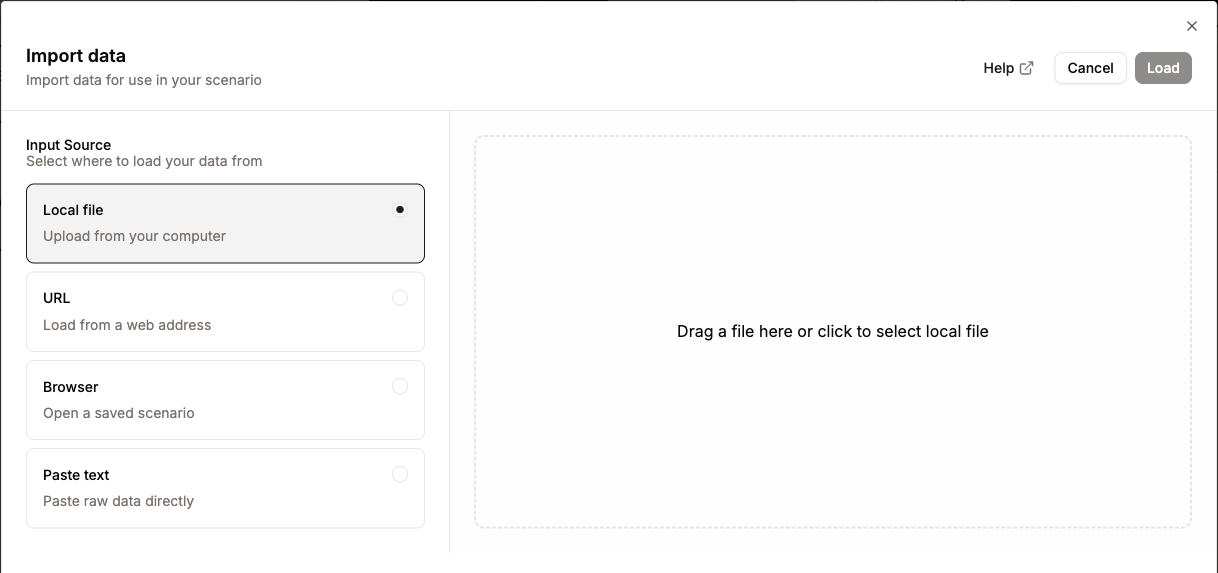
The Import data dialog opens. You see it below. As an alternative, drag a supported file and drop it on the map to start the import.
Select where the data comes from: a local file, a URL, a scenario that the browser keeps, or text that you paste. Then select the file or give the data. Usually ORBAT Mapper finds the correct import format automatically and goes to the next step. If it does not, select the correct format in the Override format dropdown list and click Load.
ORBAT Mapper scenarios
Use Side or Group import to add or update data in your current scenario from another scenario file. Choose the side or group you want to import. To update only part of a side, use Group import and import each group separately. Other sides and groups are left unchanged.
- Update included units is the default. Select the units to update. Existing sides, groups and units are matched by ID, not name. For example, adding a location to an existing unit updates that unit without creating a duplicate. Units missing from the file retain their fields and parent.
- Replace entire side/group treats the incoming scope as complete, including all its units. Existing units and groups missing from the file are removed. Inspect the removal list.
- Import as a separate copy creates fresh IDs for intentional duplication and remaps hierarchy references within the copy.
For included units and groups, incoming authored fields replace existing fields, including clearing fields absent from the incoming object. Incoming parentage and sibling order apply to included units; omitted siblings follow them in their existing order. This is not field-level conflict resolution. References to missing parents or units outside the selected scope block the import.
Units only preserves existing history. Units with state also imports history. State only updates matching selected units' history without creating missing units or changing unit fields or structural parentage. It does not remove omitted units, even with the replacement action. History can be replaced (an empty history clears it) or appended. Append ignores states at or before the latest existing timestamp. Timed hierarchy references in imported history must remain within the selected scope.
Choose import options in the sidebar. The first available side or group is selected automatically; use the selector above the unit table to choose another. Use the table's checkboxes to select units; expand rows to see their hierarchy. The Changes column describes each entry's planned changes. Hover over a shortened description to read it in full. Turn on Show changed entries only to hide unchanged entries. Added entries and parent rows remain visible, including entries you have unchecked. The filter compares all incoming entries; the preview and Import button still use your selection. Filtering does not change your selection; removals are listed under Review changes. The summary below the table shows the selected action and target, with counts of units updated, added, removed and left unchanged. Units omitted from an update are identified separately. Expand Review changes for descriptions such as “Location added,” parent changes using unit names, and counts of history entries added, updated or removed. Expand Advanced details to inspect IDs and the full before-and-after data. Unchanged items are listed separately in a collapsible section.
Layers in the file
If the file has map layers, the Side and Group import shows a Layers in this file section. Select the layers to import with the units. A layer with the same ID as a layer in your scenario can Replace existing layer or be imported as a separate copy. Other layers are added as new layers.
- A matched layer that the file changes is selected automatically, with Replace existing layer.
- A matched layer with no changes is shown as "No changes" and is not selected.
- A layer that is not in your scenario is not selected. It will be added as a new layer.
- If the file changes more than one existing layer, no layer is selected and a warning shows. A file saved from the whole scenario has copies of all its layers, and replacing them all can overwrite other layers with older copies. Select only the layers that belong to the side or group you import.
The summary shows the changes for each selected layer, for example "Blue graphics: 3 added, 1 changed, 1 removed". The units and the selected layers are imported together. To import layers without units, use Layers import.
Previewing and canceling leave the active scenario untouched. Import uses that same plan.
Use Undo immediately after import to revert the entire import, units and layers, in one step.
GeoJSON
MilX
MilX (common military exchange format) is a format that uses XML. It exchanges military map overlays. For example, the excellent map.army tool uses it to keep map overlays. ORBAT Mapper can load overlays from map.army. It supports compressed (.milxlyz) and uncompressed (.milxly) files.
INFO
ORBAT Mapper supports only a small part of the MilX format. There can also be a compatibility problem, because map.army uses MILSTD 2525C/APP6-C symbol codes with letters. ORBAT Mapper tries to change them into 2525D/APP6-D codes, but this operation can fail for some symbols.
Spatial Illusions ORBAT Builder
Spatial Illusions ORBAT Builder is a tool that makes military symbols and ORBATs. The tool can export ORBATs in a simple JSON format. ORBAT Mapper supports this format.
Order of Battle Generator
Import data from Order of Battle Generator.
Decisive Action Training Environment (DATE) force structures
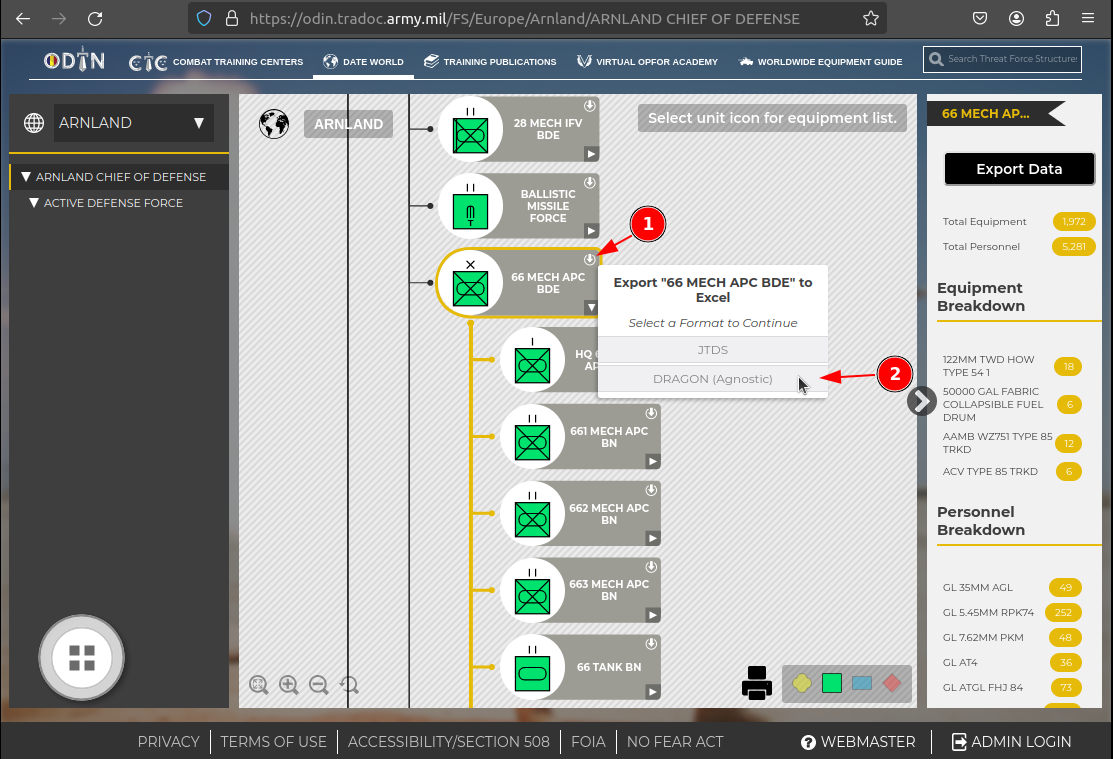
The Decisive Action Training Environment World is a training environment of the U.S. Army. To import a DATE World force structure, first download the force structure from the DATE World website. The screenshot below shows this operation. In the force structure viewer, each unit has a small export button in the top right corner. Click the export button and select the DRAGON (Agnostic) format. A .xlsx file downloads to your computer. It contains all the units, the equipment and the personnel of the force structure.
WARNING
The DATE World force structures are very large and can contain thousands of units. If you import a very large force structure, the performance of ORBAT Mapper decreases. Import smaller parts of the force structures.
When the .xlsx file is on your computer, open the Import data dialog to import it. As an alternative, drag the .xlsx file and drop it on the map. ORBAT Mapper identifies a DATE World force structure automatically.
Import options
- Parent unit. This option shows a list of the root units in the scenario. Remember that you can always move units after the import.
- Expand templates. DATE World force structures use templates to define the structure of the units. If you enable this option, ORBAT Mapper expands the templates and imports all the units of the force structure. If you disable it, ORBAT Mapper imports only the units at the top level.
- Include equipment. If you enable this option, ORBAT Mapper imports the equipment from the unit templates and puts it in the TO&E of the unit.
- Include personnel. If you enable this option, ORBAT Mapper imports the personnel from the unit templates and puts it in the TO&E of the unit.
Tabular data (Excel/CSV)
You can import units from Excel (.xlsx) or CSV files. Thus, you can use data from spreadsheets and other tools.
Column mapping
When you import a tabular file, a column mapping screen shows. On this screen, connect the columns of your file to the properties of the units.
Necessary fields:
- Name: The name of the unit. This field is mandatory.
- Icon: The function of the unit or its symbol code. If you have a full SIDC (15, 20 or 30 characters), map it here. If you have a name that persons can read (for example "Infantry"), map it here.
- Echelon: The command level of the unit (for example "Platoon" or "Company").
Validation:
The importer tries to make a valid SIDC from the mapped Icon and Echelon columns. If it cannot make a valid SIDC, or if the name is not available, the importer removes the unit from the import.
Make a hierarchy
To make a unit hierarchy again, map the Parent ID field.
- ID field: Select the column that contains the unique identifier of each unit.
- Parent ID: Select the column that contains the ID of the parent unit.
ORBAT Mapper uses these two fields to build the tree structure again.